Open the photo booth online
Start from the Photo Booth Online page and tap Begin your experience. The next screen takes you straight into the photo flow, so you can choose a frame and start making your strip without reading instructions first.
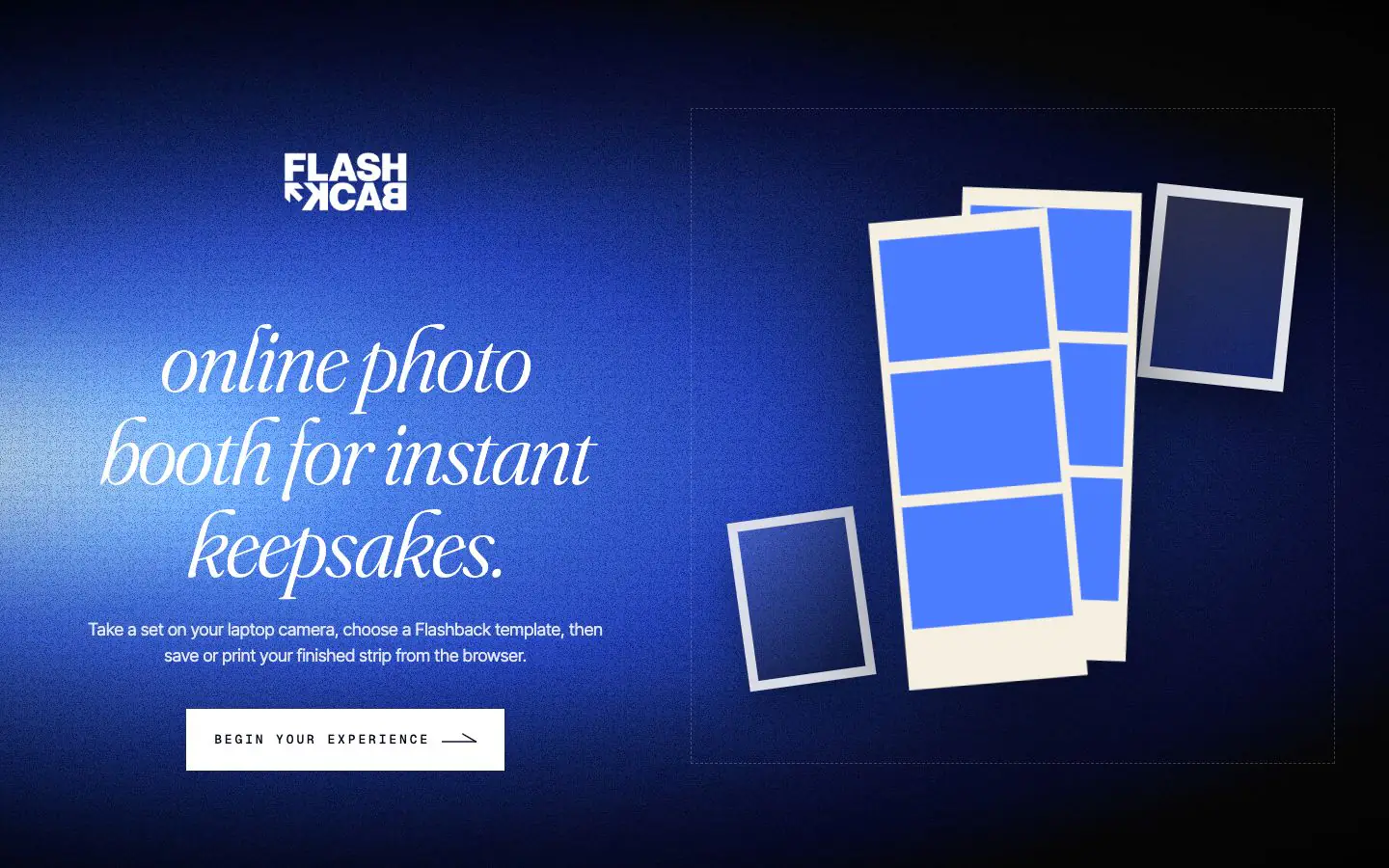
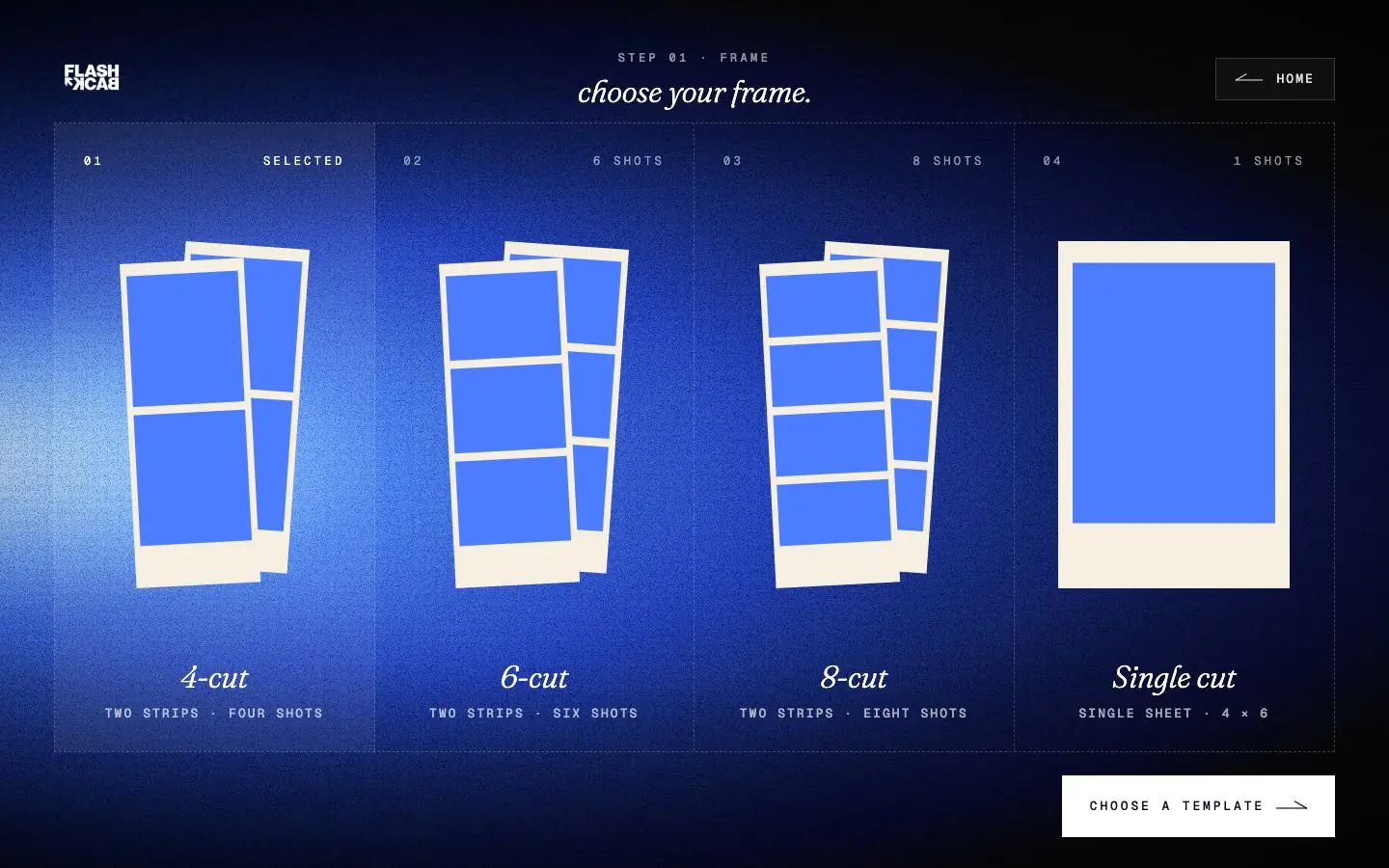
Photo booth online tutorial
Here is the simple version: choose a frame, pick a template, take or upload photos, add a filter, then download the result. Every screenshot below shows what the step looks like.
Start from the Photo Booth Online page and tap Begin your experience. The next screen takes you straight into the photo flow, so you can choose a frame and start making your strip without reading instructions first.
Pick the frame style you want. A 4-cut frame gives the classic photo booth strip look, while 6-cut and 8-cut frames let you add more poses. The frame decides how many photos you will take or upload.

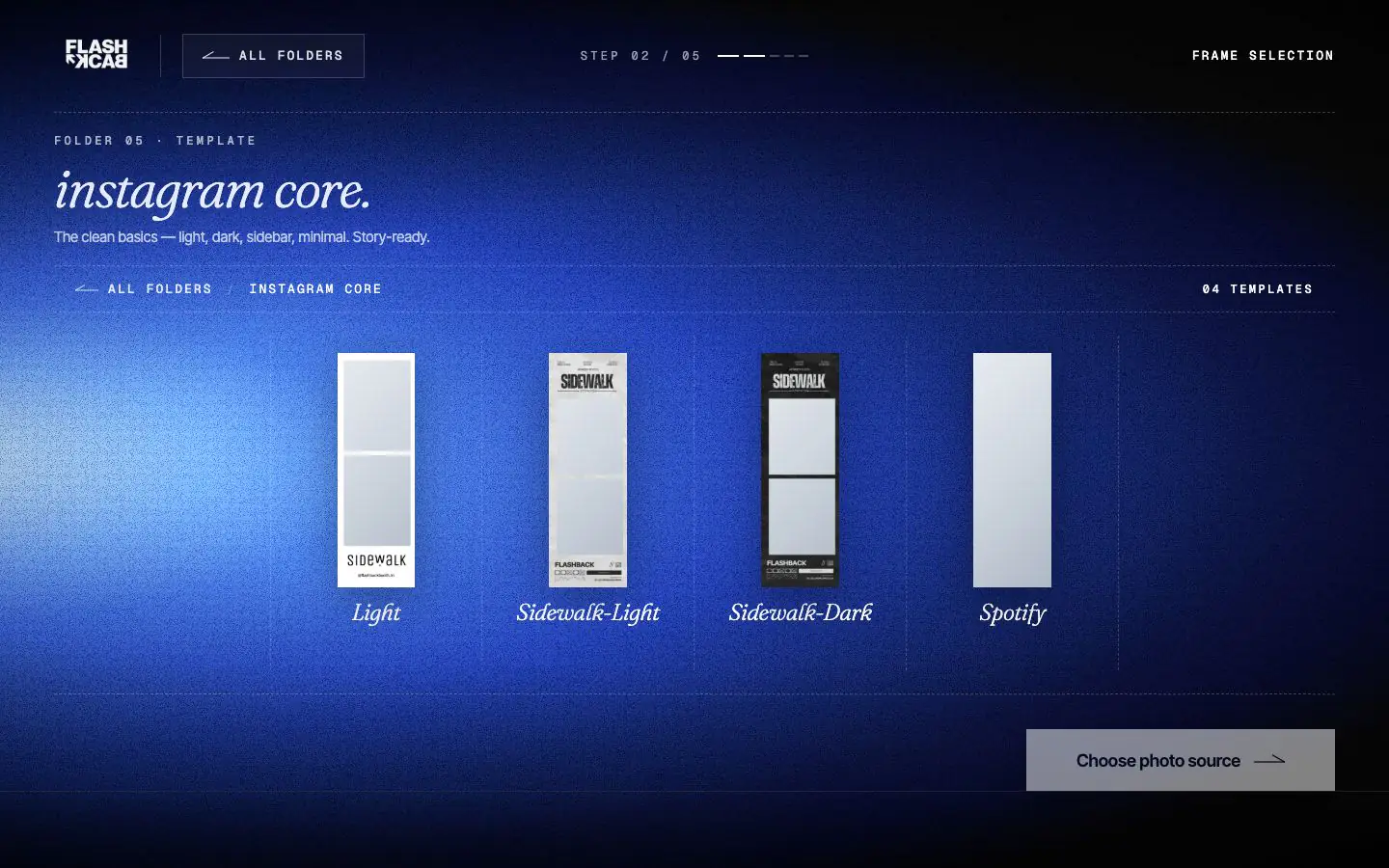
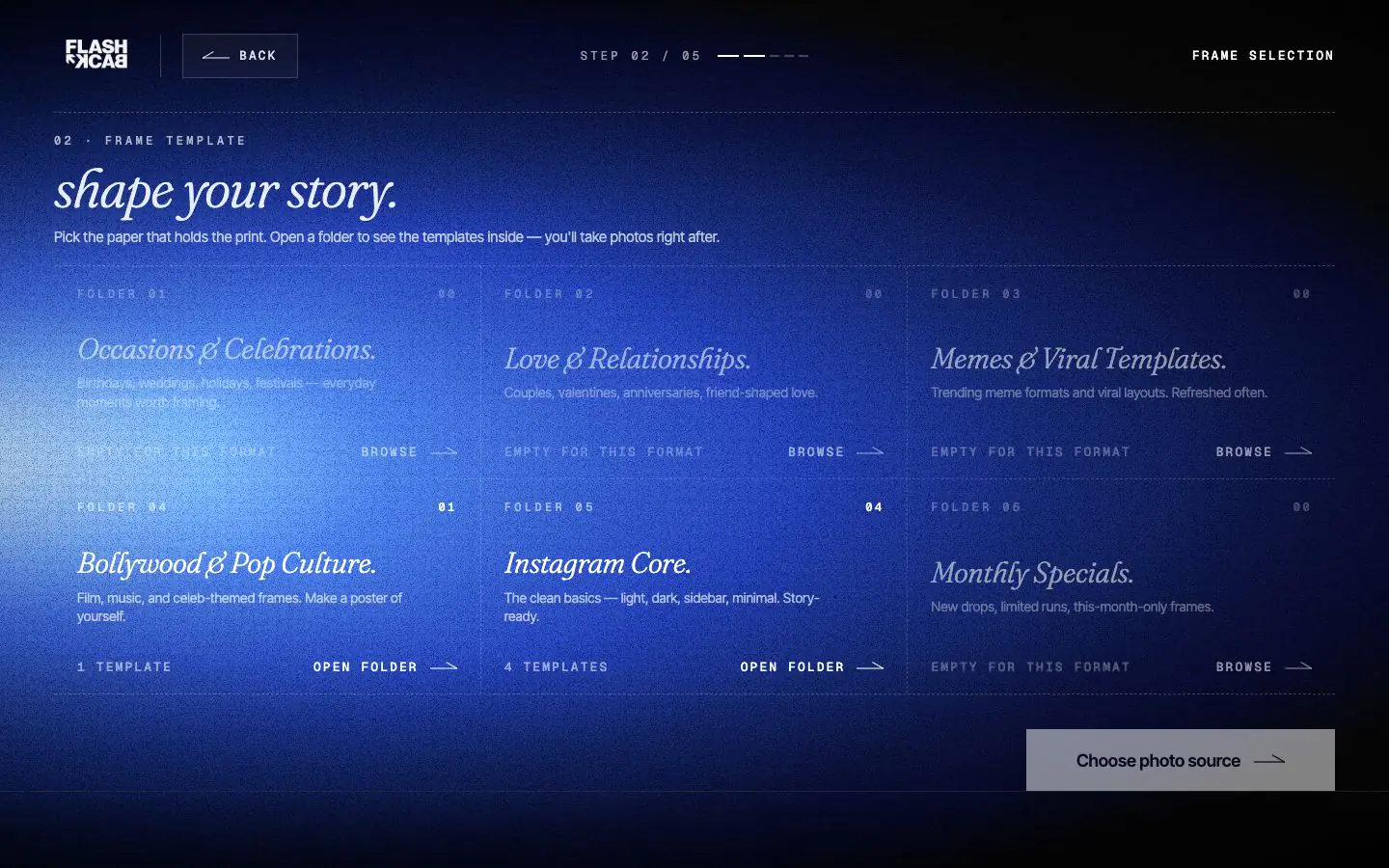
Open a template folder that matches your frame. Each folder groups designs by style, so it feels easy to browse. Choose the mood you like first, then pick the exact template inside that folder.

Choose the template you want your final photo strip to use. This is the design that your photos will sit inside, so pick something that matches the vibe: clean, playful, dramatic, or retro.

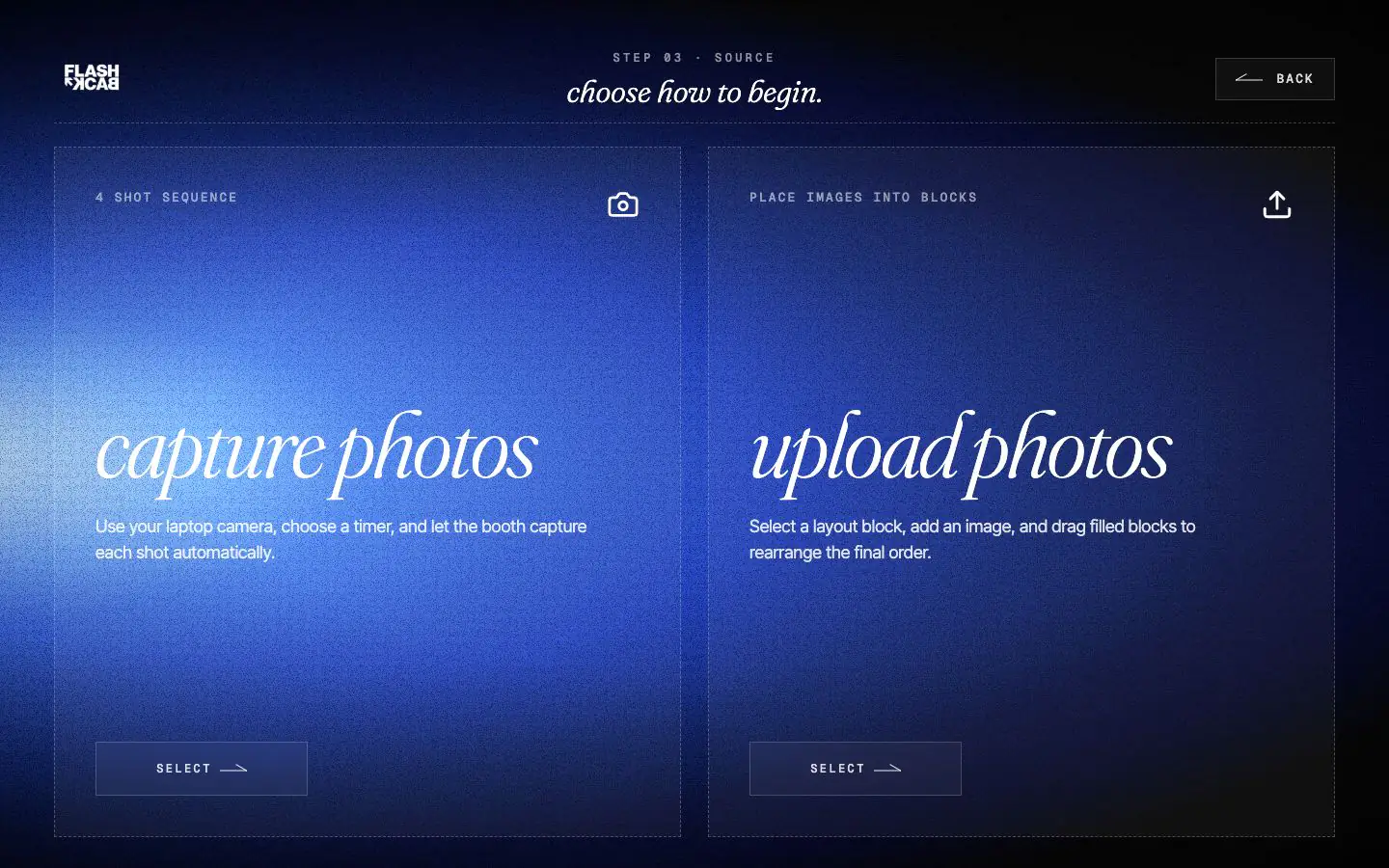
Choose Capture photos if you want to use your camera. Choose Upload photos if you already have pictures ready. Both options end in the same place: a finished photo booth strip you can customize and download.

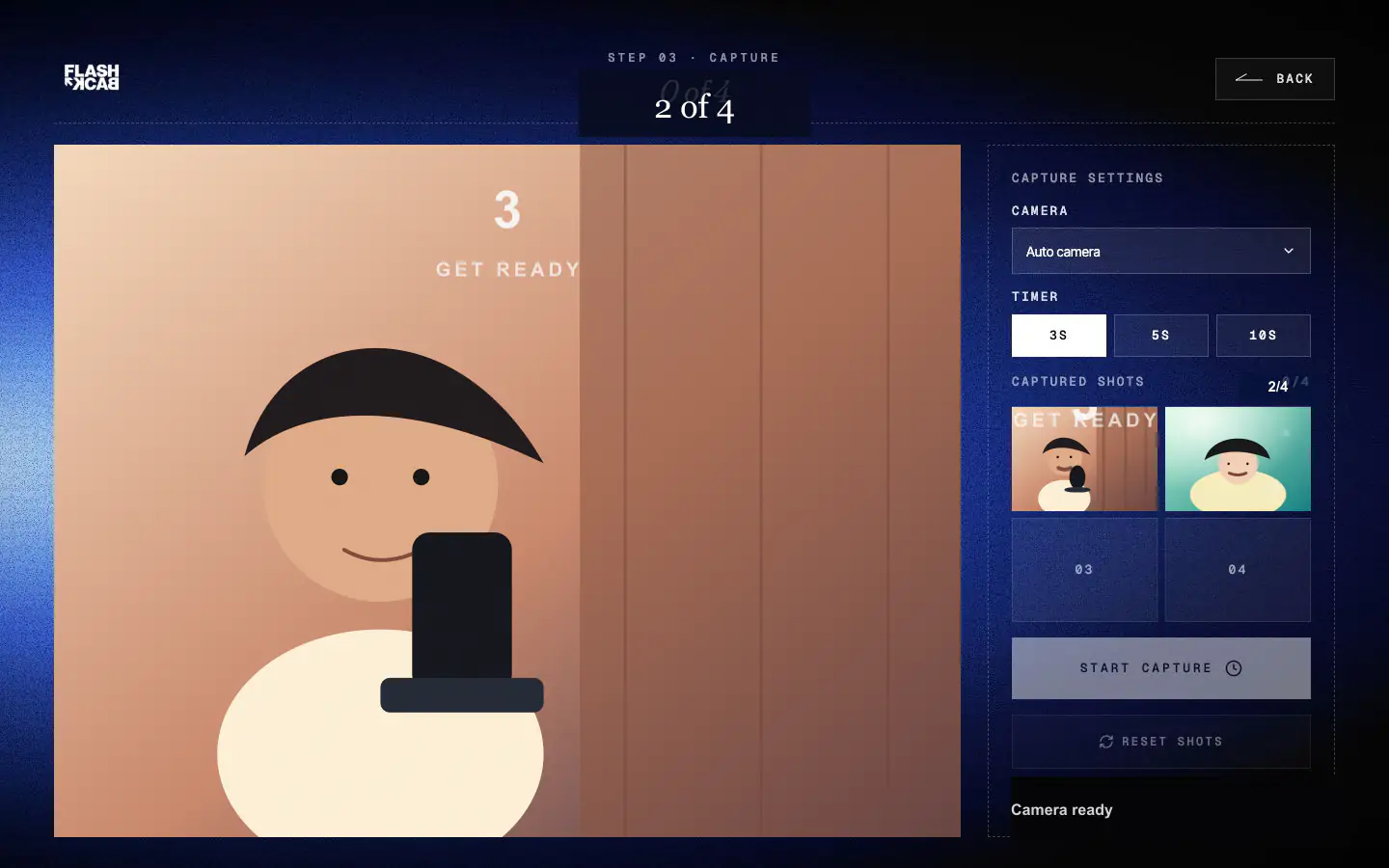
In capture mode, pick your camera and choose a 3, 5, or 10 second timer. Press start once. The web photo booth counts down, takes each photo, and fills the layout blocks automatically.

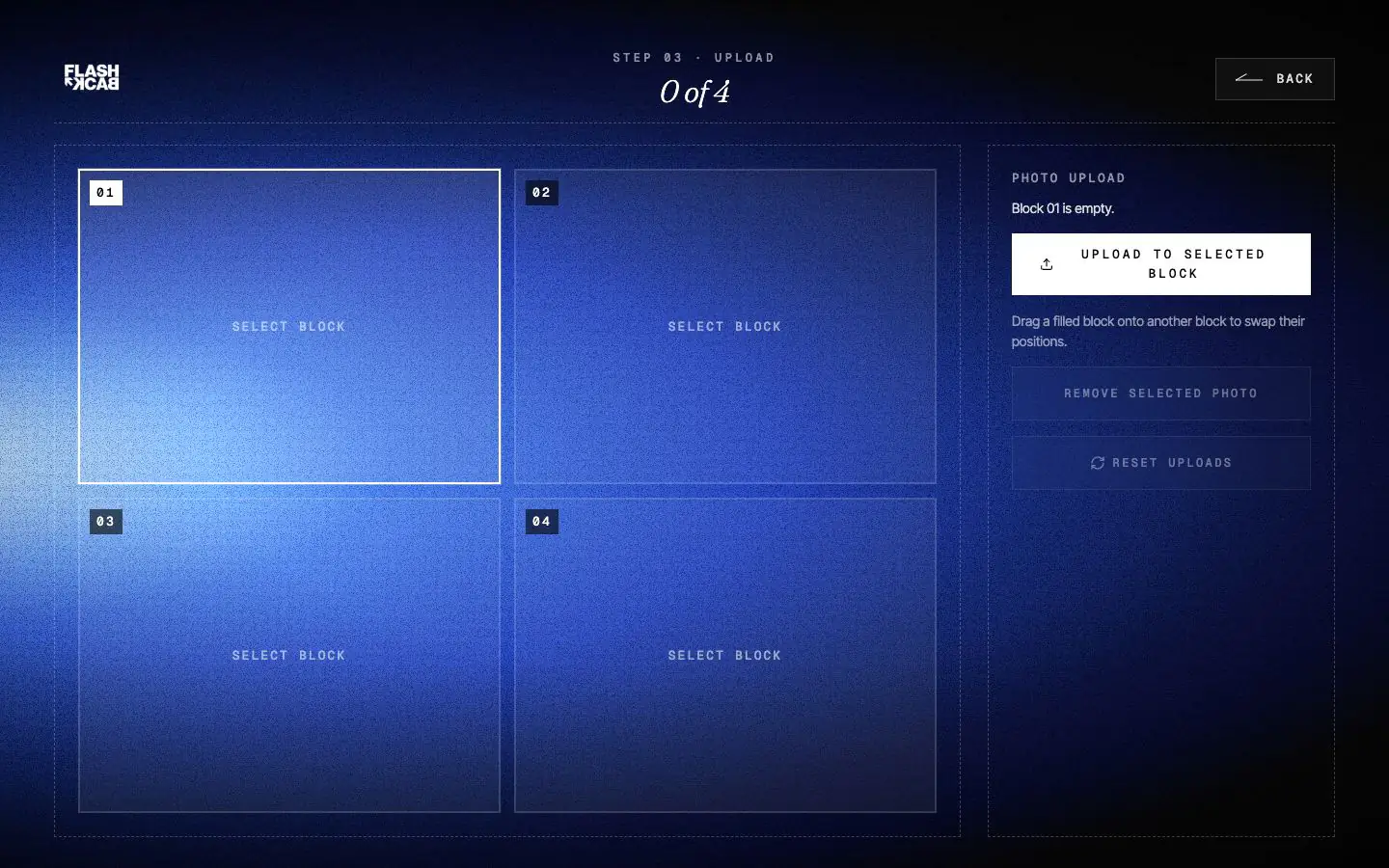
If you upload photos, select the block you want to fill and add your image there. You can replace the selected image later, and filled blocks can be rearranged so your favorite photo lands in the best spot.

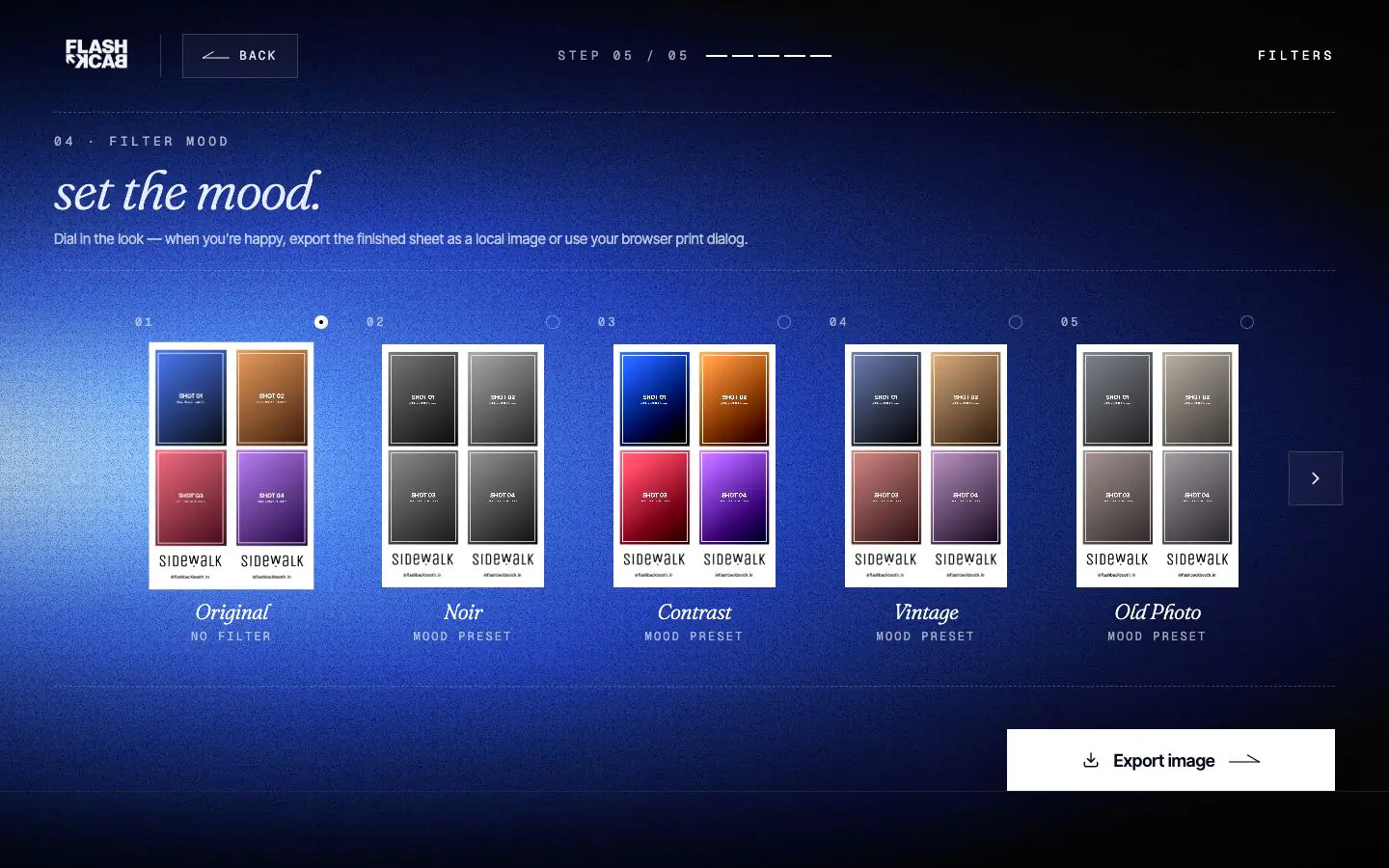
Preview your strip and choose a filter that fits the look. Keep it natural, make it black and white, add contrast, or go warmer and more nostalgic. This is the final styling step before export.

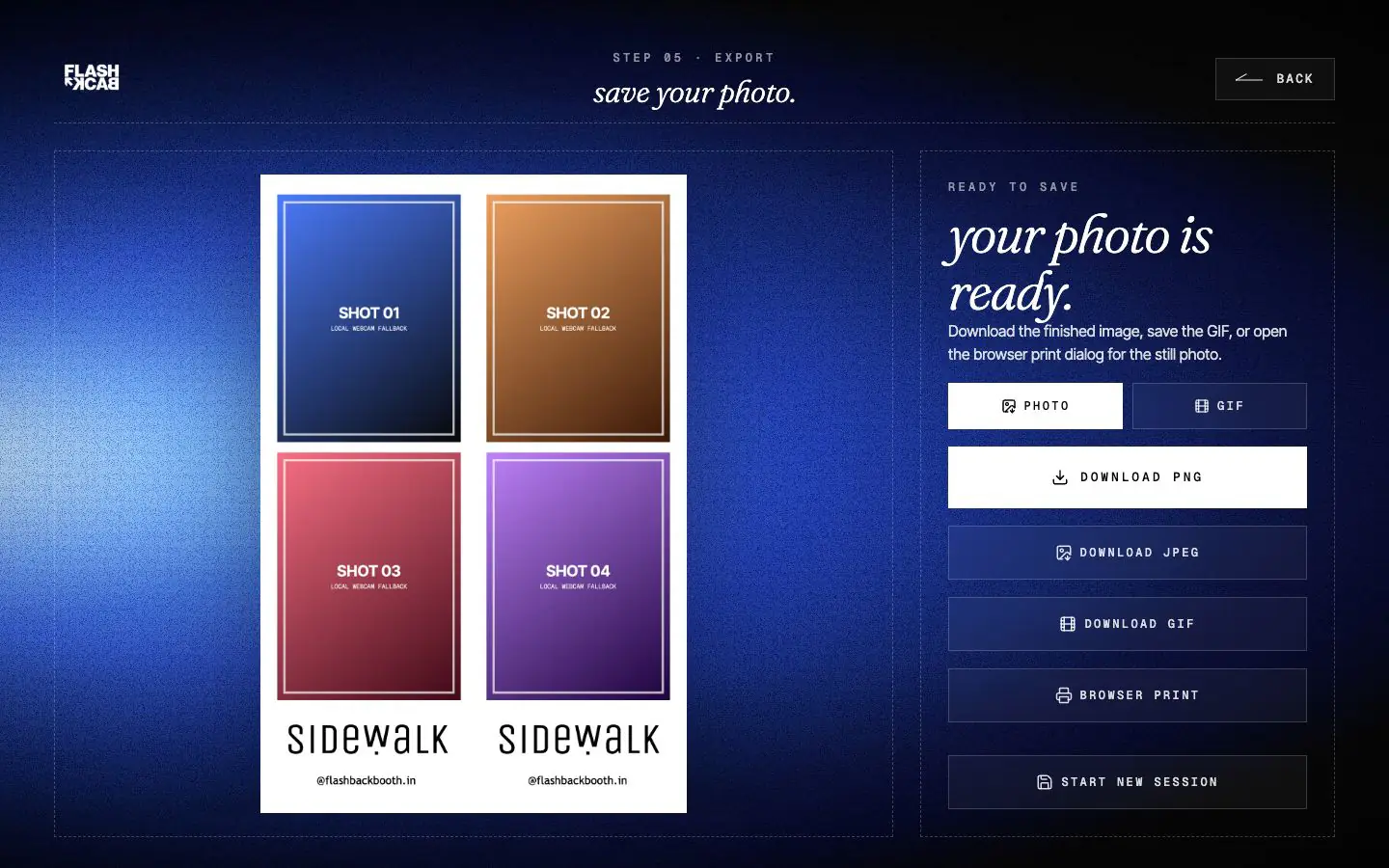
Once your photo is ready, download the final image as PNG or JPEG. If your set works as a GIF-style memory, save that too. You can keep the file, post it, or send it to friends.

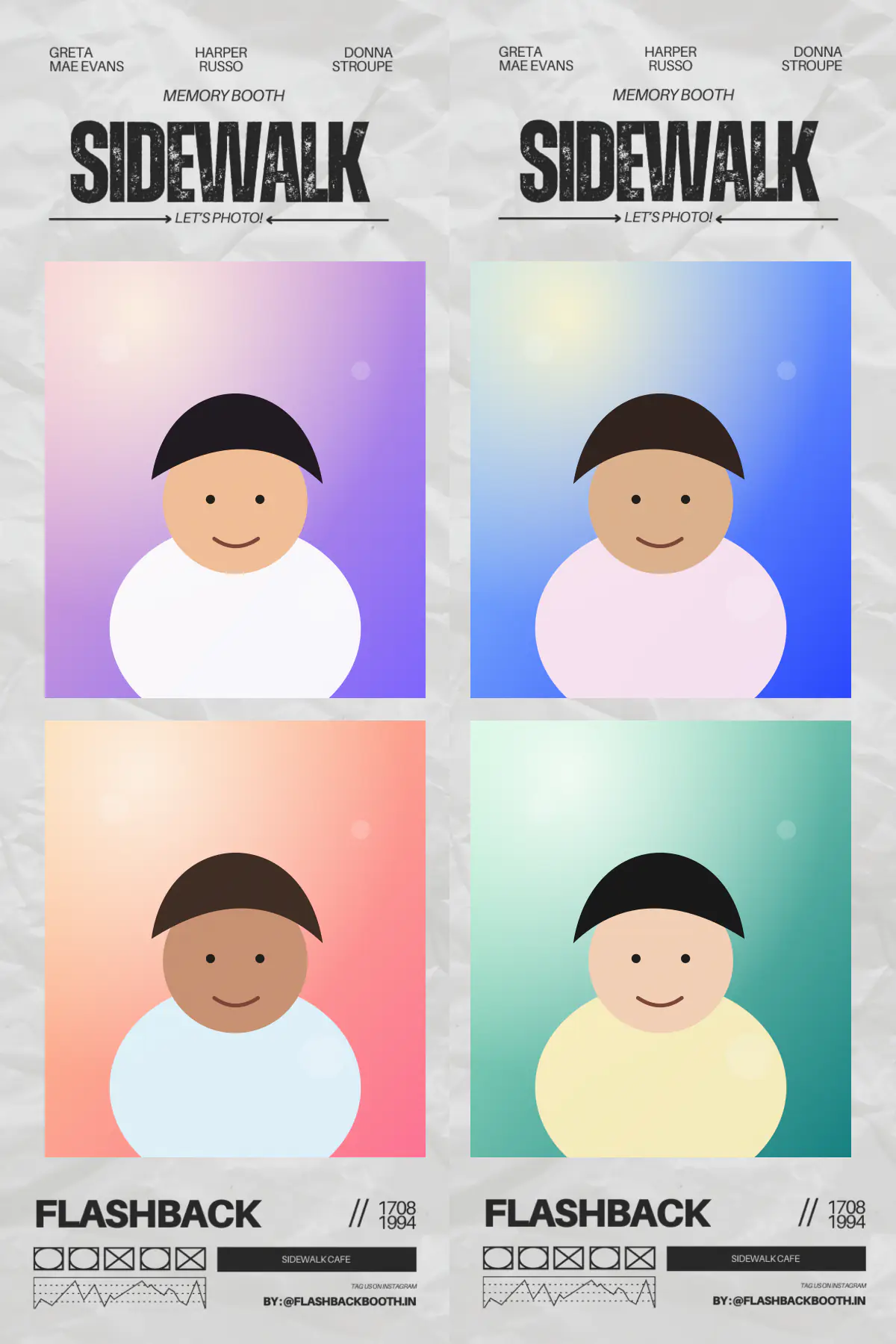
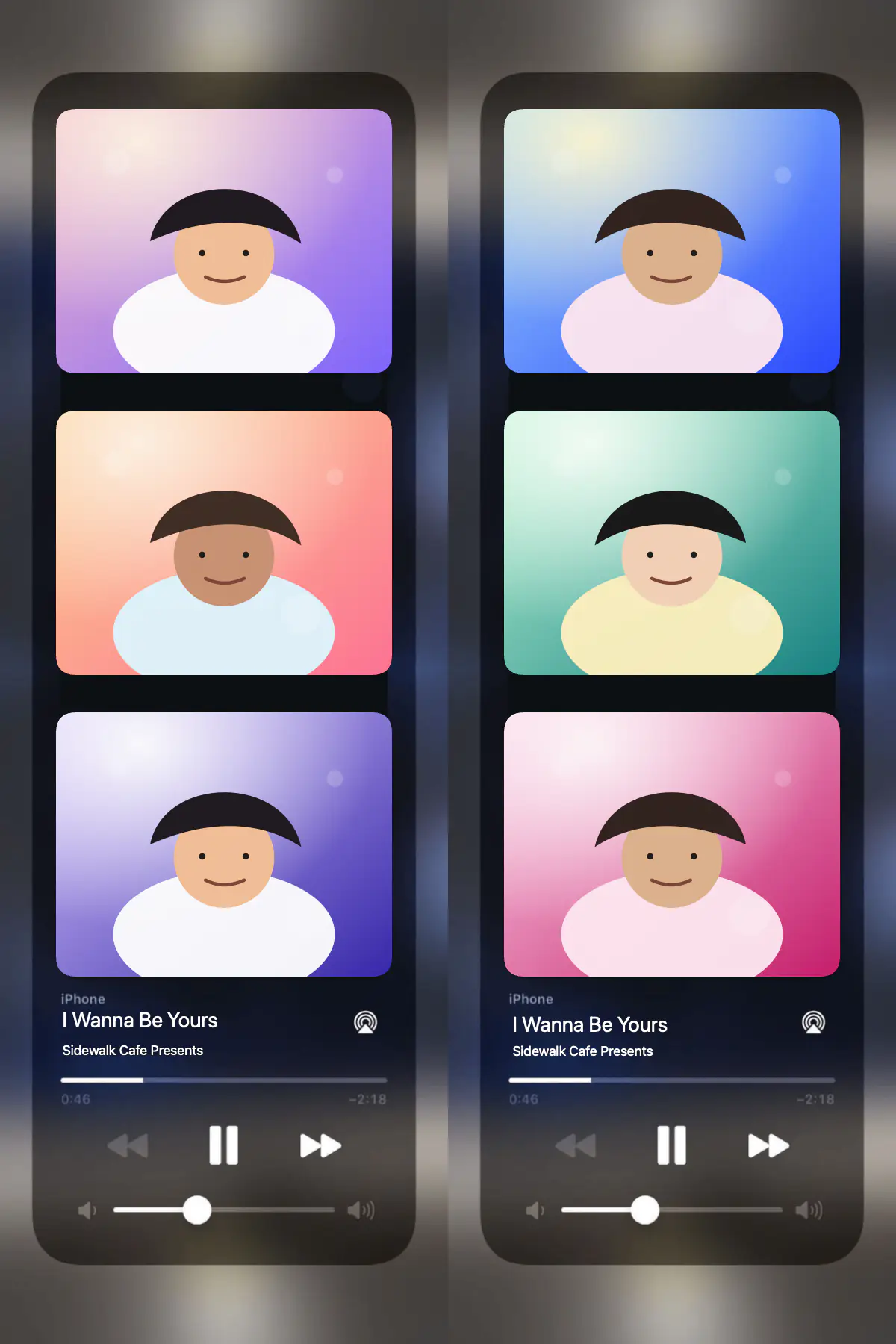
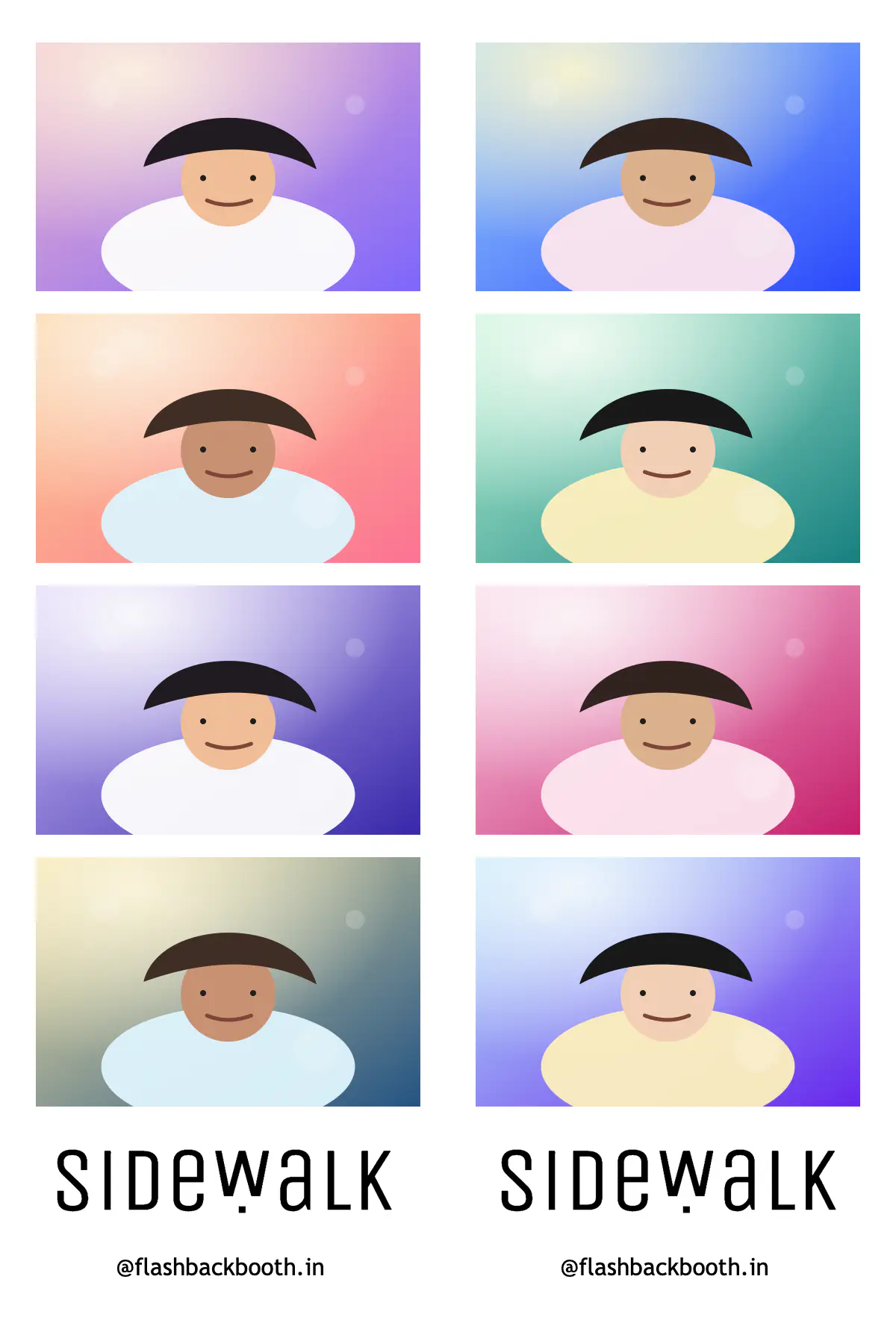
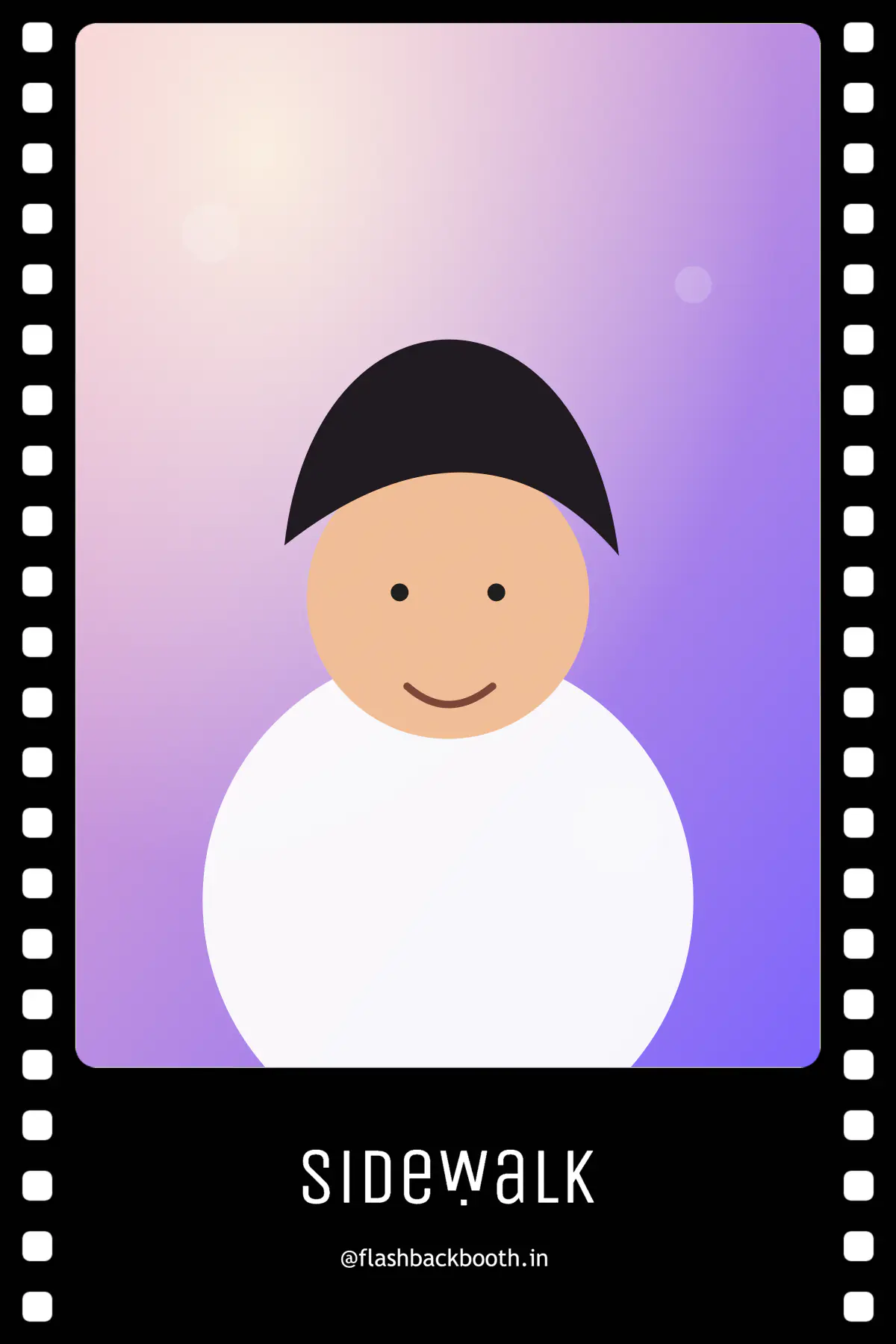
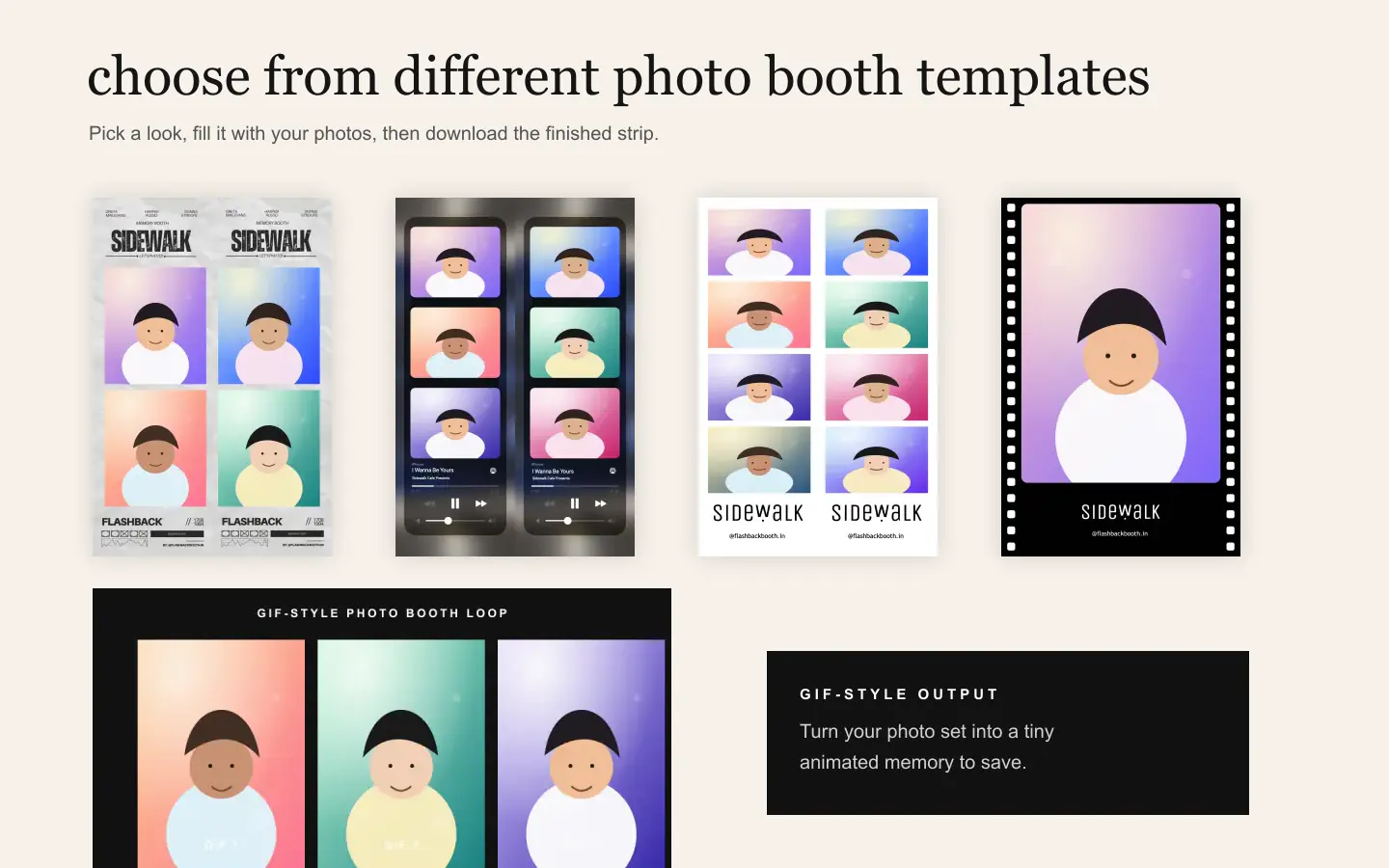
The fun part is trying different looks. You can create a clean strip, a music-style layout, a film-inspired frame, or a multi-shot collage. Choose the template that feels most like your moment.

What you can make
No complicated setup. Open the page, choose the look, and create something you would actually want to post or send to your friends.
Use your webcam or connected camera to take a timed photo booth set.
Add existing photos into the layout if you do not want to take new ones.
Choose from photo booth styles that turn simple pictures into a finished strip.
Try clean, black-and-white, warm, contrast, and vintage-style looks.
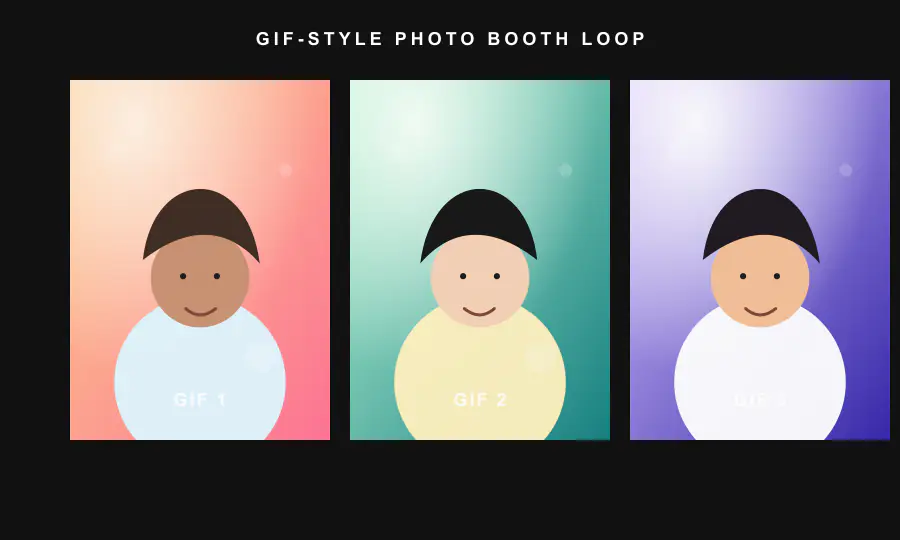
Turn a set of poses into a small animated output when the layout supports it.
Save the final result, send it to friends, or post it wherever you want.
Photo booth template examples
The final photo should feel like a finished keepsake, not just a camera screenshot. Try a strip, a film frame, a music-inspired layout, or a GIF-style sequence.
Start making one


GIF-style memories
Photo booths are fun because every pose is slightly different. With a GIF-style output, your set can feel more alive than one still photo.
Pose
Capture
Loop

Simple by design
The page should not make you learn product language. You only need to choose how the photo should look, take or upload your pictures, and save the result.
Use it from a phone, laptop, or desktop browser.
Preview the strip before you download it.
Download the finished photo and share it your way.
Photo Booth Online FAQ
The basics, without the technical product language.
It is a fun online photo booth where you can take pictures, choose a frame, add a filter, and download a finished photo strip from the website.
Yes. You can open the online photo booth and create a photo strip directly from the page.
Yes. Choose upload mode and add photos from your device into the layout blocks.
Yes. If your browser can see more than one camera, the capture screen lets you pick the one you want.
You can download your final photo booth result as PNG or JPEG. Some multi-photo layouts can also be saved as a GIF-style output.
The page is responsive and the app can open on mobile, but the best experience is on a laptop or desktop because the layouts need more room.
They mean almost the same thing here: a photo booth you can use on the web instead of inside a separate app.
Yes. Download the final image or GIF-style result, then share it through Instagram, WhatsApp, Snapchat, email, or anywhere else you like.
Ready?
Choose your frame, take or upload your photos, and download a finished photo booth strip in a few minutes.
Begin your experience